Reviewing & acting on reports
Acorn is built to make moderation feel easier and more humane. Moderation is one of the most taxing and thankless parts of running an online community and moderators deserve an interface that makes it as easy as possible.
What you'll accomplish
- Start a paced review session
- Read a reported case in full: the content, the reason, the history
- Take the right action, from a light touch to a firm one
- Loop in a teammate when you want a second view
- Leave a clean record behind you
Removal and account bans are available on Organization & Custom. Moderator limits vary by plan — see Pricing.
Before you start
- A configured labeler. If moderation says it isn't set up yet, that's the policy step we help with today (see How moderation works).
- A few minutes. Sessions are timed on purpose; you don't have to clear everything at once.
Working the queue
Here's the whole loop in motion — moving between cases, marking a policy, and lining up an action:
Check in and start a session
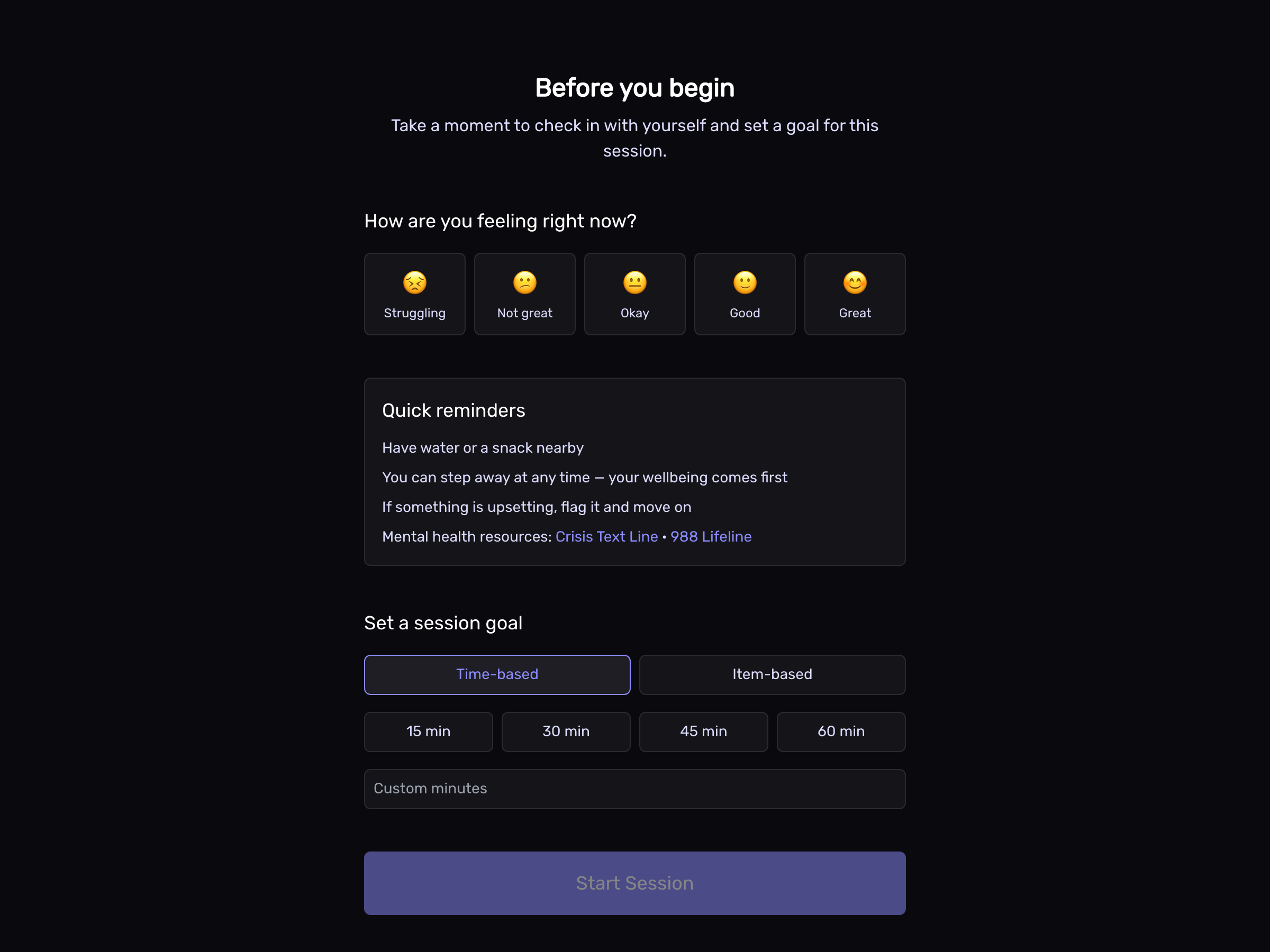
Moderation opens with a short check-in: how are you feeling today (a quick one-to-five), and how long do you want to sit with it (15, 30, 45, or 60 minutes). Skip it if you need, but this helps moderators be more intentional with moderation as well as track their progress more easily while they moderate.
Open the queue
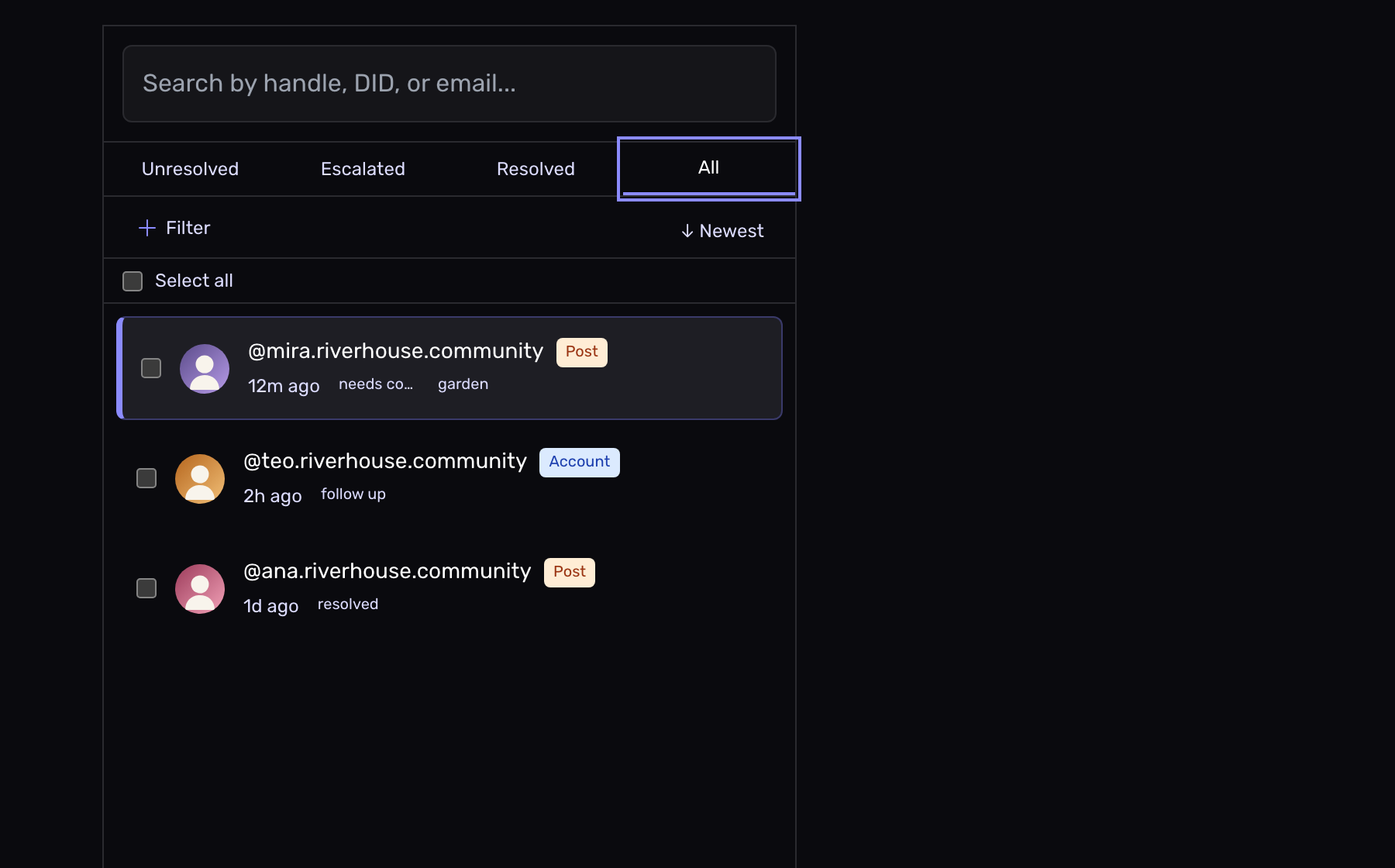
You'll see the reports waiting, each as a card: what was flagged (a post or an account), who's involved, and why it was reported. Filter by label or tag if you want to focus on one kind of case.
Open a case
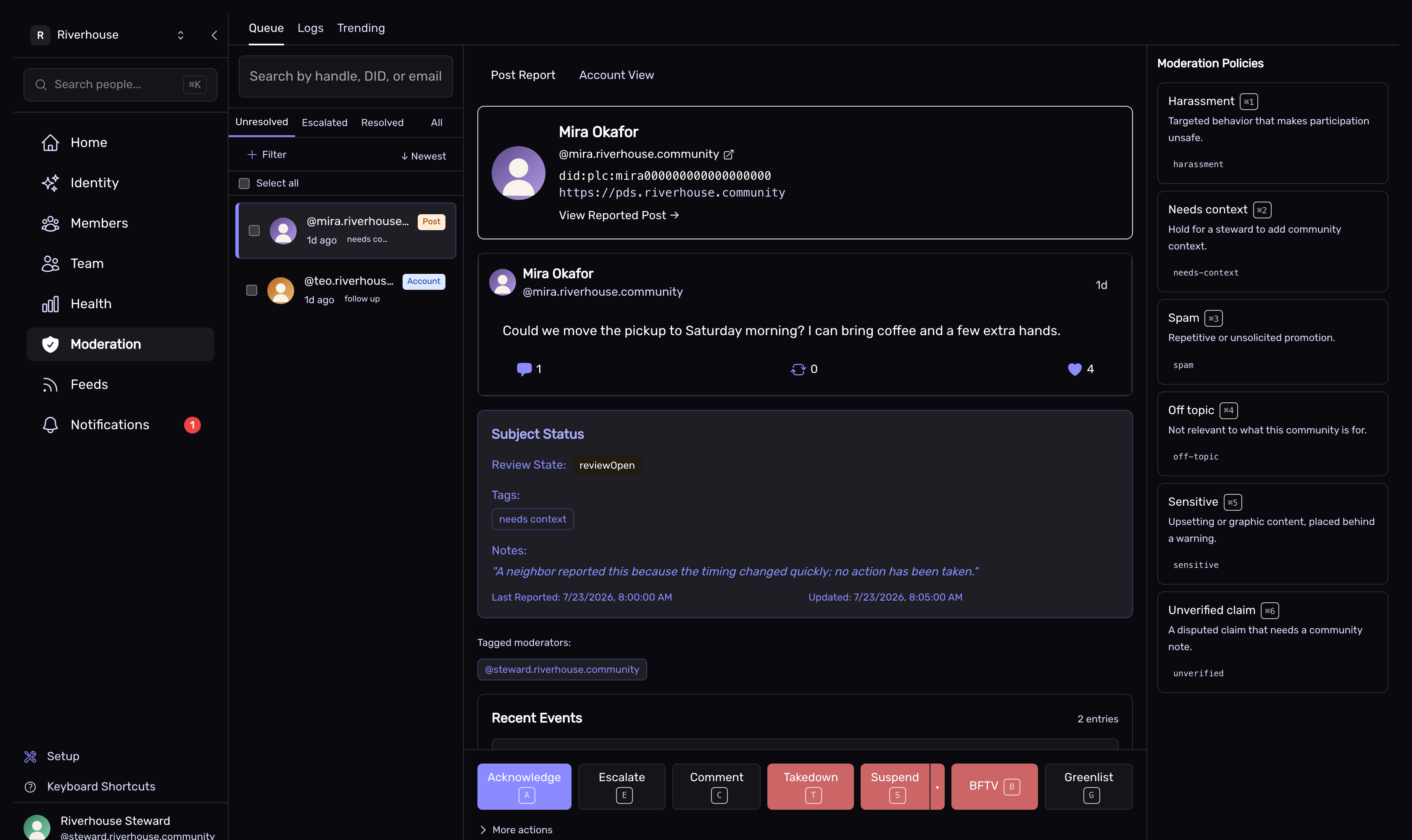
Pick a card to see the whole picture in one place: the reported content itself, the reporter's reason, the account's recent history, and any labels already on it. You decide with context, not from a one-line summary.
Decide and act
Choose the action that fits. Each has a keyboard shortcut so a steady session stays quick:
- Acknowledge (
A) — you've looked, and it's fine as is. Clears it from open. - Escalate (
E) — hand it up for a closer or more senior look. - Comment (
C) — leave an internal note on the case for whoever sees it next. - Apply a label — mark the content or account with one of your community's labels: add context, or put it behind a warning.
- Takedown (
T) — remove the content from your community.
The additional actions that you see: BFTV and Greenlist

Loop in a teammate (optional)
Want another view? Tag a moderator on the case, or Escalate it. You can also mute a reporter who's filing in bad faith. The case carries your note so the next person picks up where you left off.
Wrap up
When your time's up, Acorn wraps the session and lands you on a short summary of what you got through. Step away with a clean stopping point rather than an endless list.
Every action is logged
Nothing you do is silent. Every decision — who did it, when, and why — is written to your community's moderation log, kept by your labeler. It's there for accountability: to answer "what happened with this account?" and to keep a team honest with each other.
What's next
- How moderation works — the pieces behind the queue, if you skipped ahead.
- Adminship: roles & permissions — give trusted members the moderator role and share the load.